
Having difficulty syncing events to your new Outlook for Windows Calendar?
There is a bug in the latest Outlook release, stripping the ECAL sync url of its secure connection to a server (https:// or webcal:)
Please follow the instructions below to sync your favourite events to calendar.
*Note – It is easiest to sync when your Outlook Calendar is open. We have included instructions for an open Outlook Calendar and when the Outlook application closed.
New Outlook (calendar open)
1. Choose your favorite schedule(s)
2. Select New Outlook (Desktop)
3. Complete the data collection fields in Confirm your Details and click next
4. Copy the link, click next and open Outlook (see below)
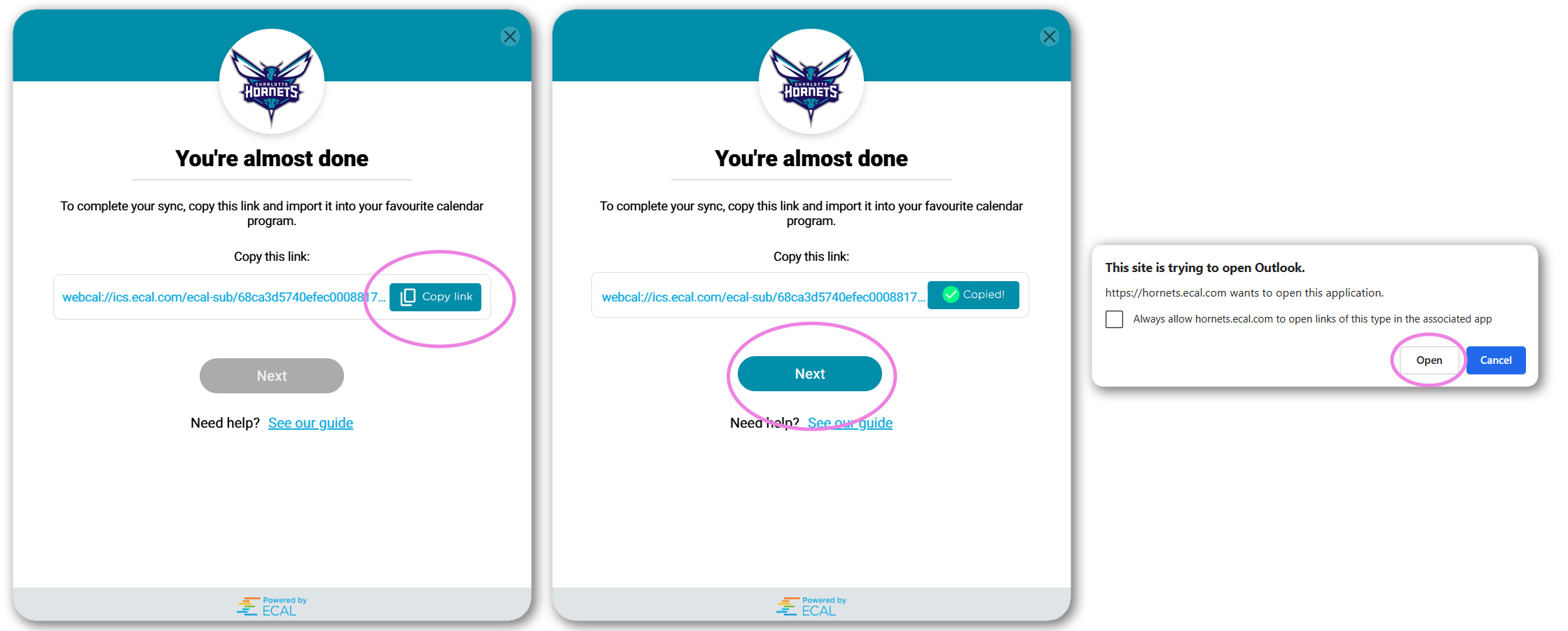
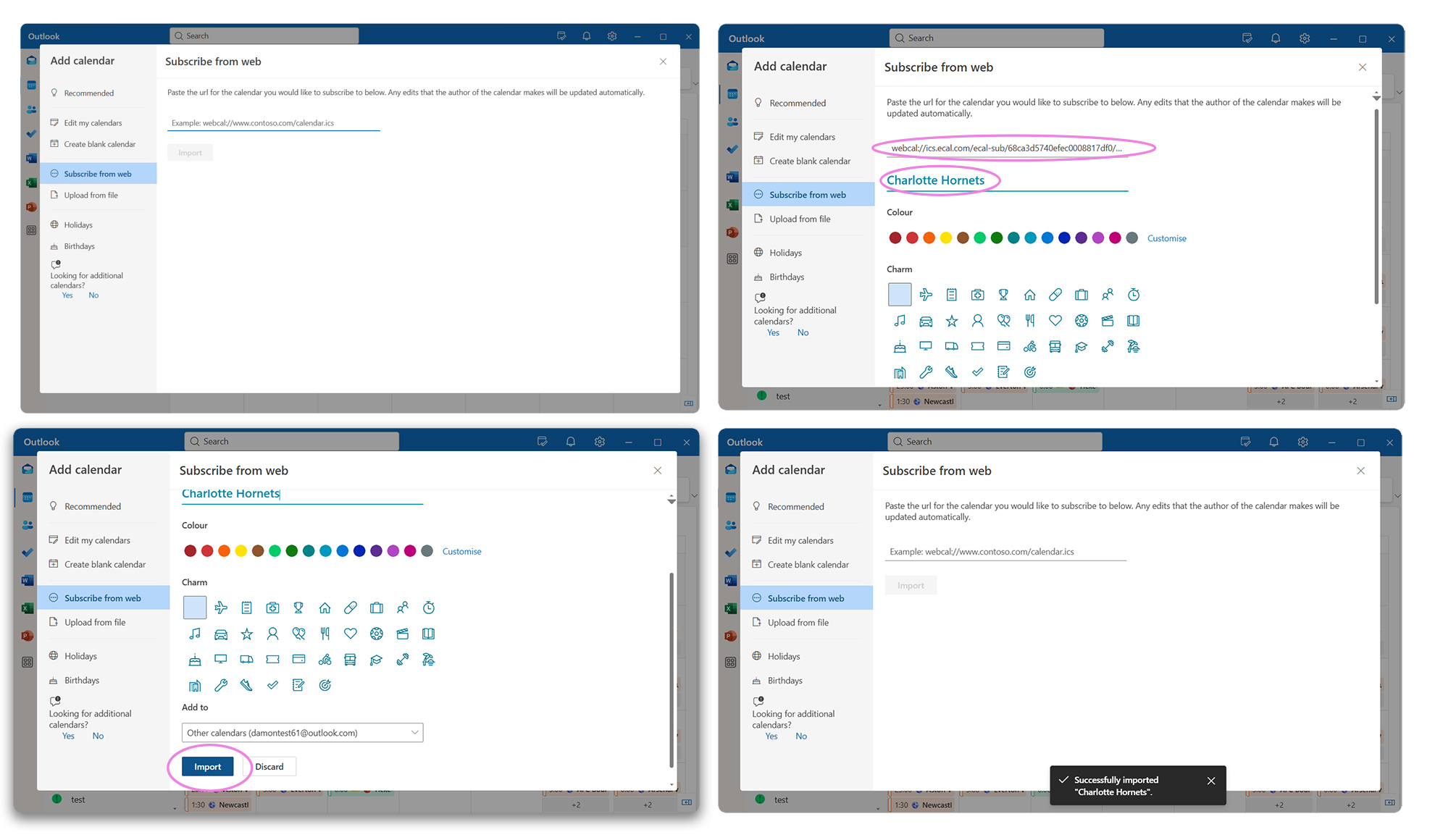
5. Navigate to your open Outlook Calendar
6. Paste in the copied URL, give the Calendar a name (e.g Charlotte Hornets), select a calendar color (optional) and select Import.
You will see a “Successfully imported” message when the sync has been successful
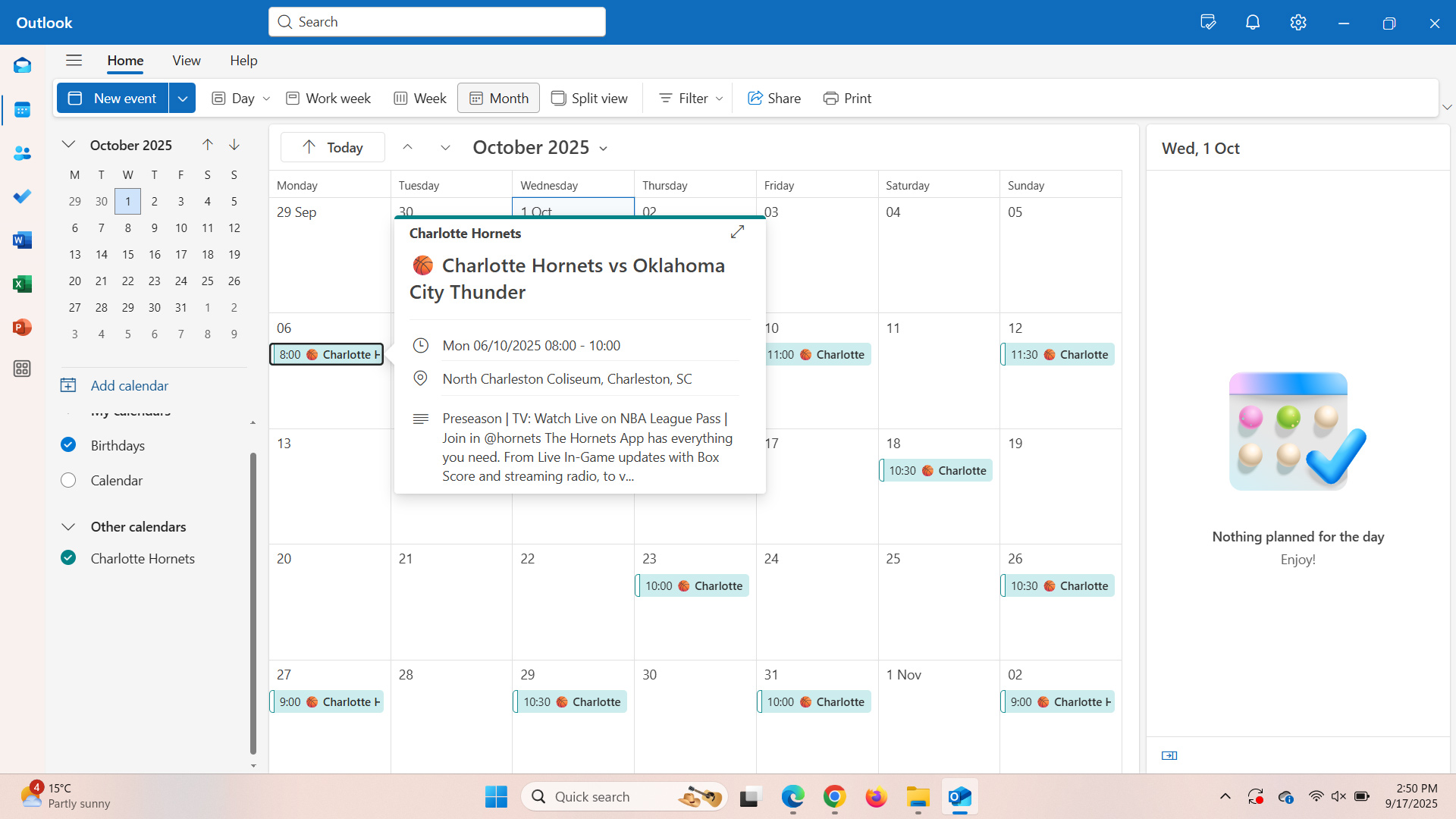
7. It’s time to see your events! Your subscribed calendar will sit under your ‘Other Calendars‘.
To show or hide, simply click the tick icon.
New Outlook (application closed)
The process syncing events to your New Outlook Calendar (when the application is closed) is the same as above, except when Outlook opens, it will by default open on your email. Please select Calendar in the left hand navigation.
The webcal link input dialog will be open; however, it removes the webcal:\\ part from the subscrition URL. You will need to paste in the copied subscription URL.
Step by step instuctions are below.
New Outlook (calendar open)
1. Choose your favorite schedule(s)
2. Select New Outlook (Desktop)
3. Complete the data collection fields in Confirm your Details and click next
4. Copy the link, click next to Open Outlook
5. Outlook will open to your email by default
6. Switch to Calendar view, by selecting Calendar in the left hand navigation pane.

7. The webcal link input dialog will be waiting for you
8. Paste in the correct subscription link give the Calendar a name (e.g Charlotte Hornets), select a calendar color (optional) and select Import.
You will see a “Successfully imported” message when the sync has been successful
9. It’s time to see your events! Your subscribed calendar will sit under your ‘Other Calendars‘.
To show or hide, simply click the tick icon.
.
