
If you are at any stage unhappy with the service, you can remove ECAL’s access from your account using the Google MyAccount portal
Here’s how:
- Step 1. Make sure you are logged in to your Google Account and open Google Calendar.
- Step 2. Click the Account Icon in the top right of the screen.
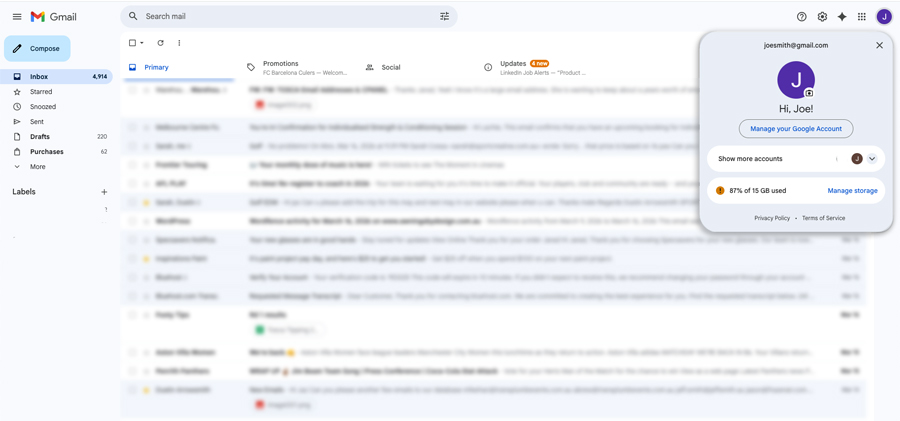
- Step 3. Click the My Account button. This will take you through to your Account Dashboard. (You can also access this page at https://myaccount.google.com/).
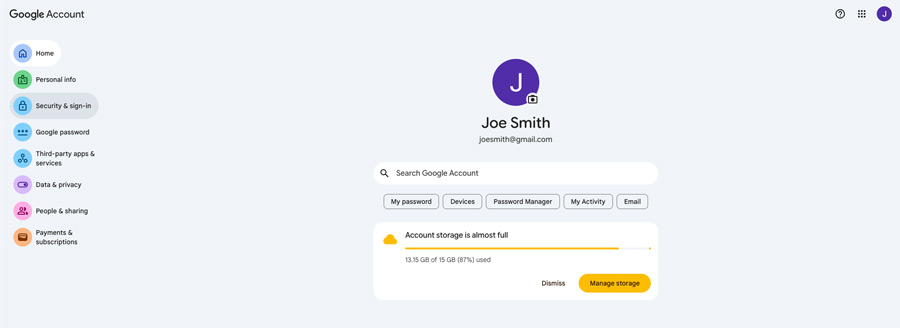
- Step 4. Select Sign-in & Security in the left hand navigation menu
- Step 5. Scroll down the page to the ‘Your connections to third-party apps & services’ section and click ECAL.
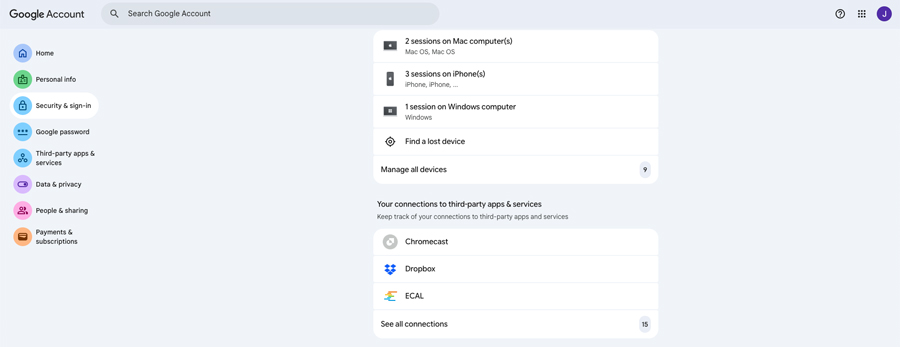
- Step 6. Click Delete all connections you have with ECAL
- Step 7. A pop-up window will appear asking you to confirm the removal of access.
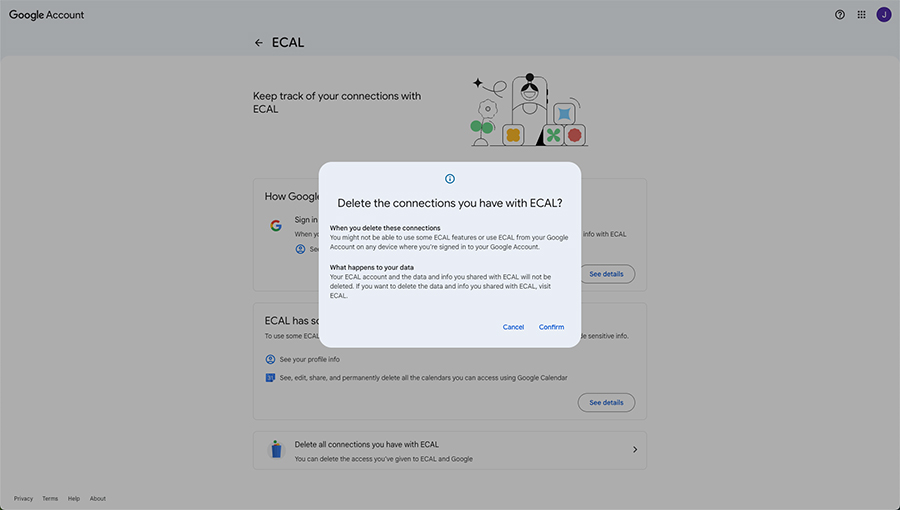
Once confirmed, ECAL will not be able to deliver content into your calendars. If you change your mind, simply re-subscribe!
