We try to make subscribing to ECAL as simple as possible, but we understand that sometimes things don’t go to plan.
Here are a few of the common problems we’ve seen people experience when trying to subscribe to ECAL using the apple calendar.
1. Pop-Up Blockers
When subscribing, you should see a pop-up that will prompt you to open your apple Calendar (Major League Baseball (MLB) example).
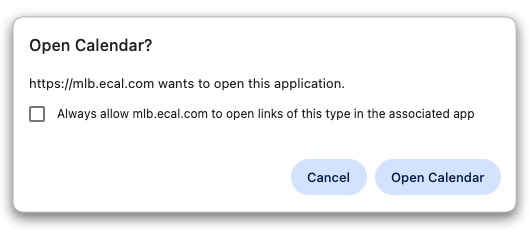
If you do not see the pop-up, click the “Didn’t see the popup” link on the widget display, which should re-open the popup and you can follow the instructions to add to your calendar.
Do you have a pop-up blocker enabled? Information on enabling your pop-up blocker is here.
2. iCAL didn’t Open
Sometimes your computer might not have a Default calendar set. No stress though, if this sounds like you just need to try the following steps.
Subscribe again but this time choose the ‘Other ICS’ option. 
- Copy the webcal link that you see. This is your personal ECAL link so don’t share it with others to avoid causing problems with your calendar.
- Open the Calendar application on your computer
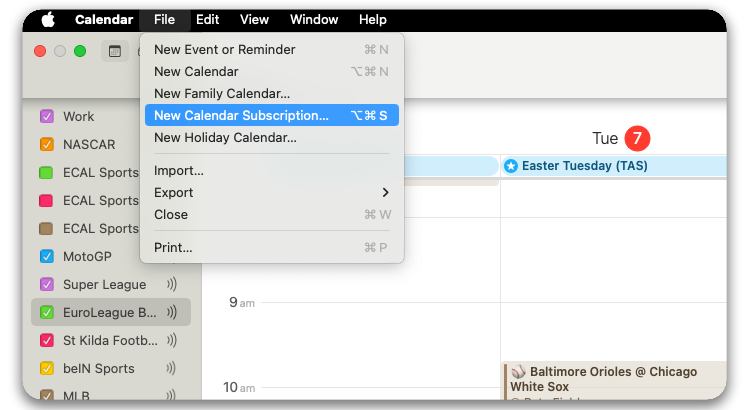
- Under the File option, select New Calendar Subscription
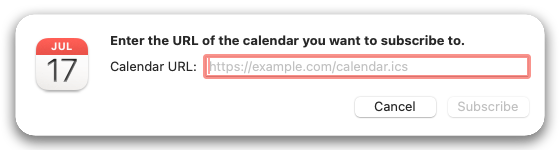
4. Paste the URL and click Subscribe