Not receiving notifications for your events on Apple Calendar?
By default, third party application reminders are switched off when you sync any schedule from a new publisher to your Apple Calendar.
Although Notifications > Event Alerts is selected, a secondary set of reminder rules override ECAL’s calendar notifications.
Here are the steps to turn your reminders on.
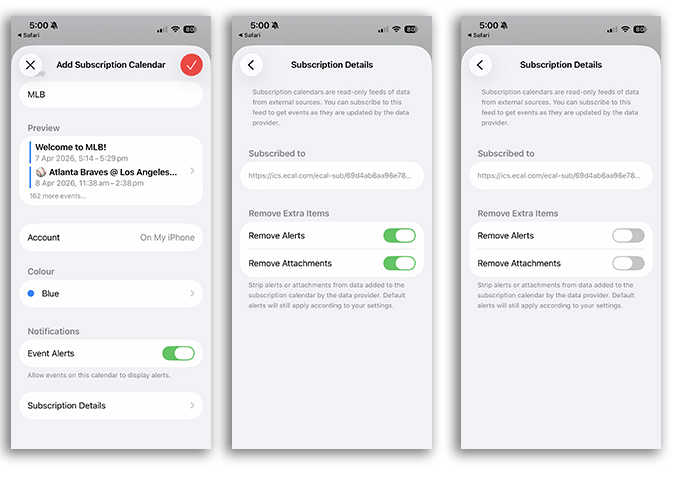
iPhone Apple Calendar – New Subscription
When subscribing, you will see a popup that will prompt you to open your Apple Calendar and to Subscribe.
After clicking Subscribe, you are presented with a screen detailing the Calendar you’re subscribing to. You will see that Event Alerts is turned ON.
To ensure Reminders are switched ‘on’;
- Step 1: Click Subscription Details.
- Step 2: Uncheck Remove Alerts
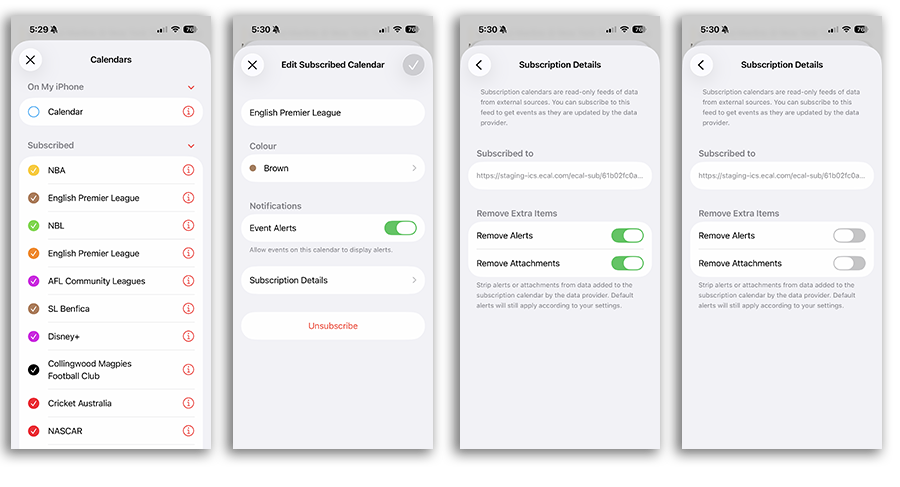
iPhone Apple Calendar – Existing Subscription
To enable notifications for existing calendar subscriptions, open your Apple Calendar
- Step 1: Click Calendars
- Step 2: Click the
 icon for the corresponding calendar
 - Step 3: Click Subscription Details
- Step 4. Uncheck Remove Alerts
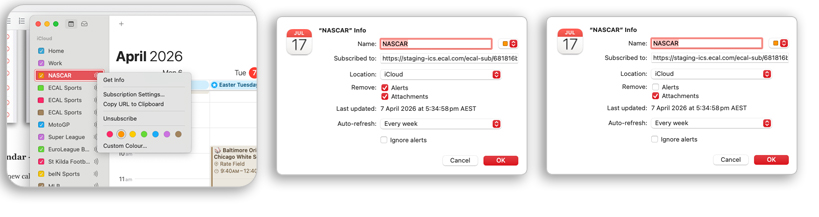
Desktop Apple Calendar
To enable notifications for existing calendar subscriptions, open your Apple Calendar
- Step 1: Open your Apple Calendars
- Step 2: Right click the
 icon for the corresponding calendar and click Get Info
 - Step 3: Uncheck Remove Alerts